
Last week Prakash G.R. wrote an excellent post on Using progress bars. This is definitely a post that I’ll be referring my students to in the future. There is still one missing piece to the progress bar puzzle, though, and that is how to add the Progress View itself to your application.
You might think that this view would appear on its own when requested through the UI, and in my opinion this is the way things should be (this has been discussed in past Bugzilla entries). For instance, your users may see a job running in the status bar of your RCP application, like this:

![]()
When the user clicks on the conveyor belt icon, they would expect to see a detailed progress view allowing them to cancel the job, like this:
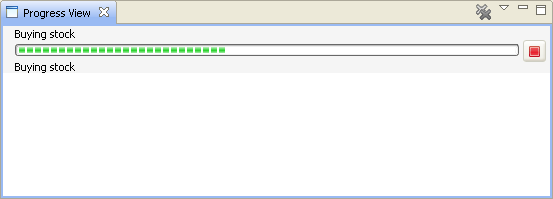
So how do you get this working? The answer is not what you might think. Normally, you would add a view by finding the view class and creating a new view extension. But for the Progress View, things are a bit different. The ProgressView class itself is internal and is not intended to be referenced directly. It is exposed, however, through an extension factory. The XML to create the view extension looks like this:
<extension
point="org.eclipse.ui.views">
<view
name="Progress View"
icon="icons/pview.gif"
category="org.eclipse.ui"
class="org.eclipse.ui.ExtensionFactory:progressView"
id="org.eclipse.ui.views.ProgressView">
</view>
</extension>
The last piece we need to make this work is the view icon, which can be found in the org.eclipse.ui.ide plug-in (not part of the RCP SDK). The actual file in this plug-in is icons/full/eview16/pview.gif. You’ll need to copy this icon into your own plug-in and reference it in the view extension.
So while not extremely straightforward, it’s not that difficult either. Interestingly, there are a variety of other things you can add to your application through the same extension factory mechanism. If you’d like to find out more, check out the constants in the ExtensionFactory class.


> This is definitely a post that I’ll be
> referring my students to in the future
Thanks!
Hello,
is it possible to put your own view for the progress view? I expect to change the class and thats it? Correct?
Hi Jens,
Yes it’s possible to create your own progress view. It just needs to have the same id as the regular one:
org.eclipse.ui.views.ProgressView.— Patrick
How would you get the progress to show up on the status bar? Just adding the view doesn’t do it.
Hi Bob,
To get progress information to show up you’ll also need to have the following line in your WorkbenchWindowAdvisor.preWindowOpen() method:
configurer.setShowProgressIndicator(true)
Hope this helps.
— Patrick
Cool, that mostly works. Thanks.
However, the progress indicator on the status bar never goes away when the job is done.
I tried calling:
site.getActionBars().getStatusLineManager().getProgressMonitor().done();
But that didn’t seem to help.
Never mind, I figured it out. I was accidentally calling monitor.worked() after monitor.done() had been called, and I guess that screwed stuff up.
Hello Patrick,
how can I enable the maximize and minimize button for the progress view? is it possible to disable the other two button (double cross and triangle button)?
kind regard
kai
Hi Kai,
You could contribute the progress view yourself with a perspectiveExtension. Then you would have access to the properties (closeable, etc) that all views do.
— Patrick
Hi all,
the progressbar also shows up, when u use a user-job and the ApplicationWorkbenchWindowAdvisor is configured like that:
configurer.setShowProgressIndicator(true);
configurer.setShowStatusLine(true);
thx
Very useful information.
Thanks
I’m using eclipse Jobs and need to see the progress dialog + status bar progress indicator. These are available by setting:
configurer.setShowStatusLine(true);
configurer.setShowProgressIndicator(true);
With this comes the Progress view which I don’t want. Is there anyway to disable it?
Thanks.
Hi Stuart,
I’m not clear on exactly what’s happening. Does the Progress View open up as soon as you start the job? It’s only supposed to open if you click on the progress feedback in the status line.
— Patrick
Thank you so much for publishing the missing puzzle piece. I was looking for it after reading the article Prakash wrote. And especially the progress indicator on the status bar.